
First Login
First-Time Access Guide: How to Log In and Set Up Your Account
Welcome to the Track and Report Unsafe Veterinary Products System (TRUVET). This step-by-step guide will walk you through accessing the platform for the very first time.
Step 1: Accept Your Email Invitation
When your account is newly registered by an administrator, the system automatically adds you as a guest user to Microsoft Azure Active Directory.
1. Check your email inbox for an invitation message from Microsoft Azure inviting you to access the system.
2. Click the link provided within the email to accept the invitation and activate your account.
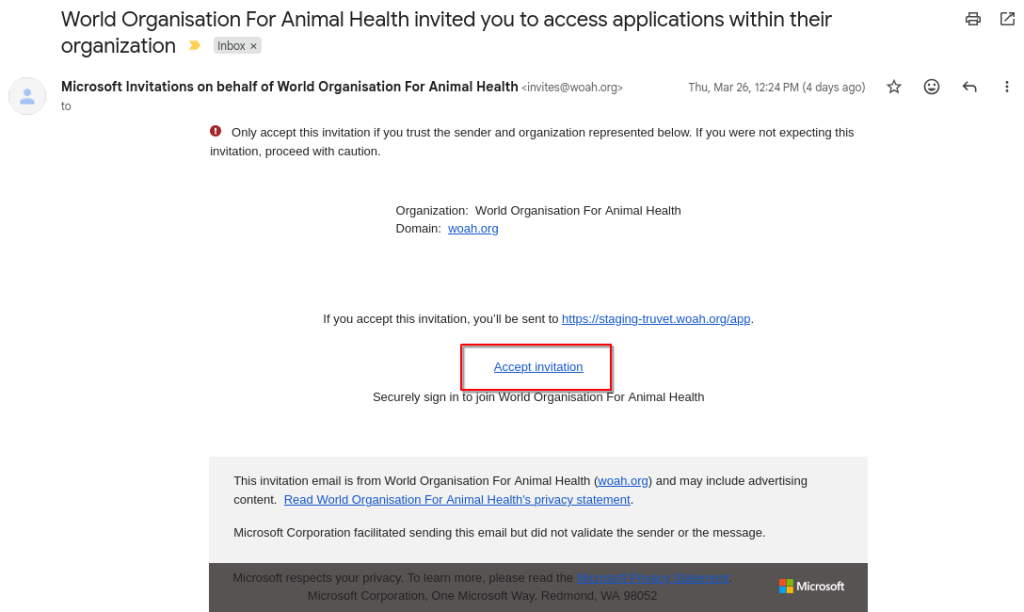
Note that sometimes such emails can end up in a “Spam” folder.
Step 2: Log Into the System
Once you have accepted the invitation, you can log into the platform securely.
1. Go to the system’s main landing page and click the “Log In” button.
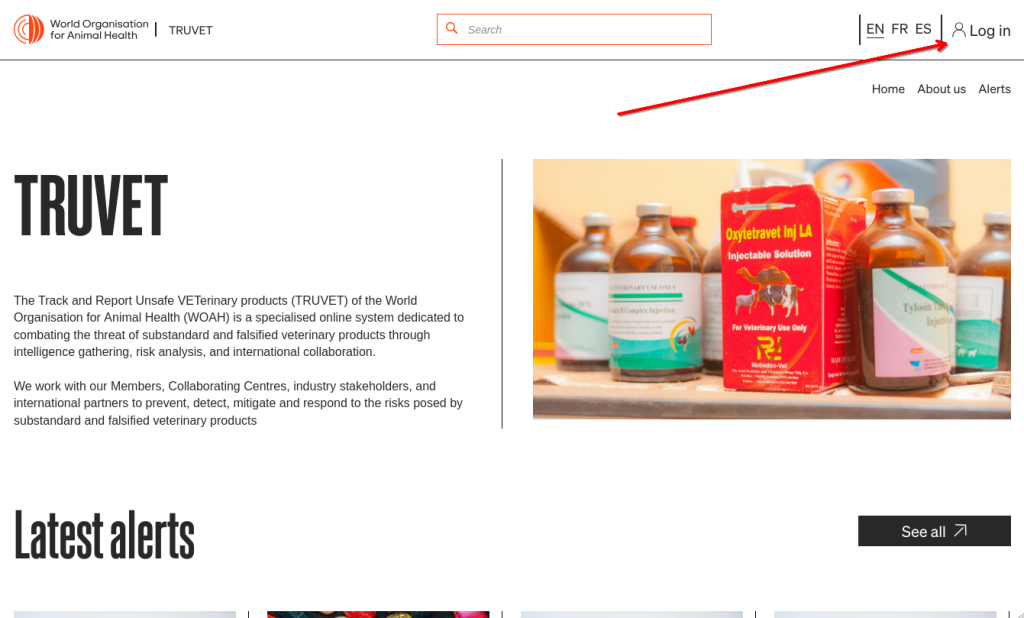
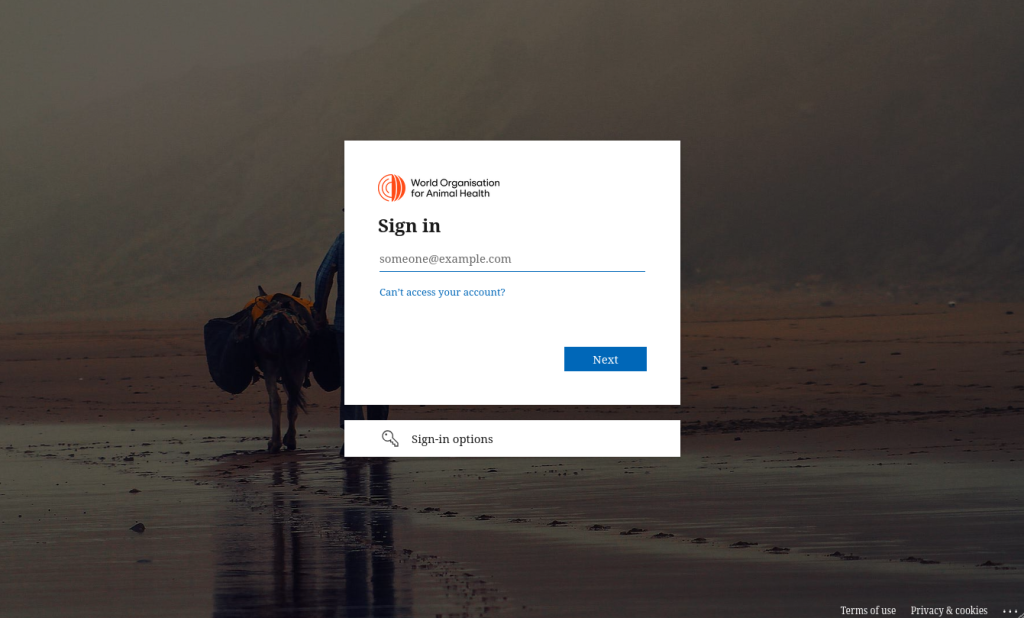
2. You will be automatically redirected to the secure Microsoft Azure login page.
3. Enter your email and credentials to sign in via Single Sign-On (SSO).
Important: You must log in to your computer using the exact same email address you used for TRUVET. Using a different email will cause a system error.
Step 3: Review and Accept the Privacy Policy
To ensure your data is handled safely and in compliance with GDPR regulations, you must consent to our data processing terms.
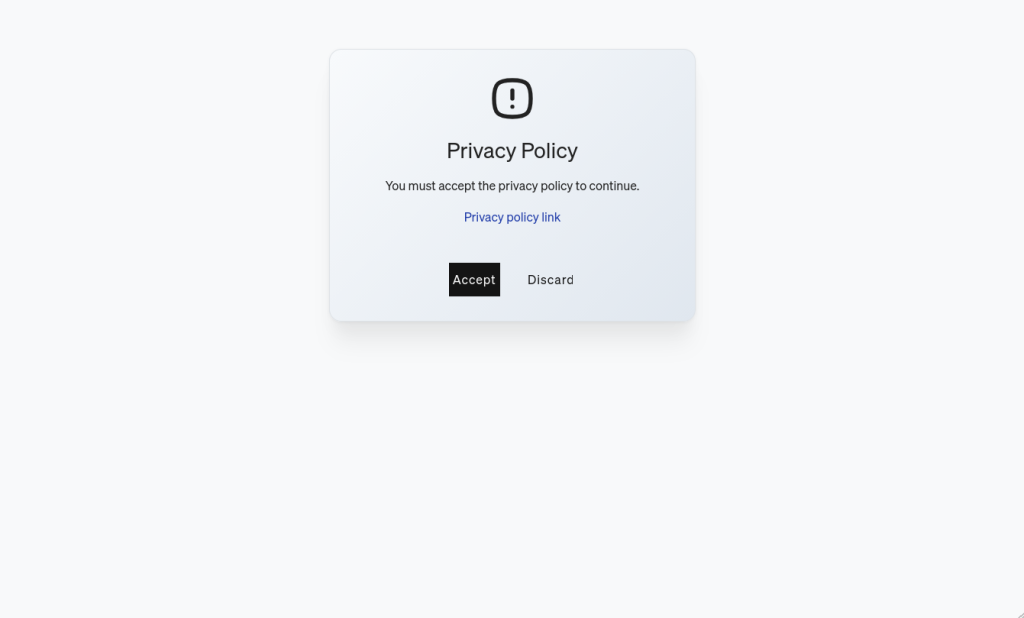
1. Upon your first successful login, you will immediately see a prompt displaying the latest version of the system’s privacy policy.
2. Carefully review the information provided.
3. Click Accept to provide your explicit consent.
Note: If you click Reject, you will be safely logged out of the system, returned to the landing page, and will not be able to access the platform.
Step 4: Complete Your Profile Information
After accepting the privacy policy, the system will quickly check to ensure your account has all the necessary basic details to function properly.
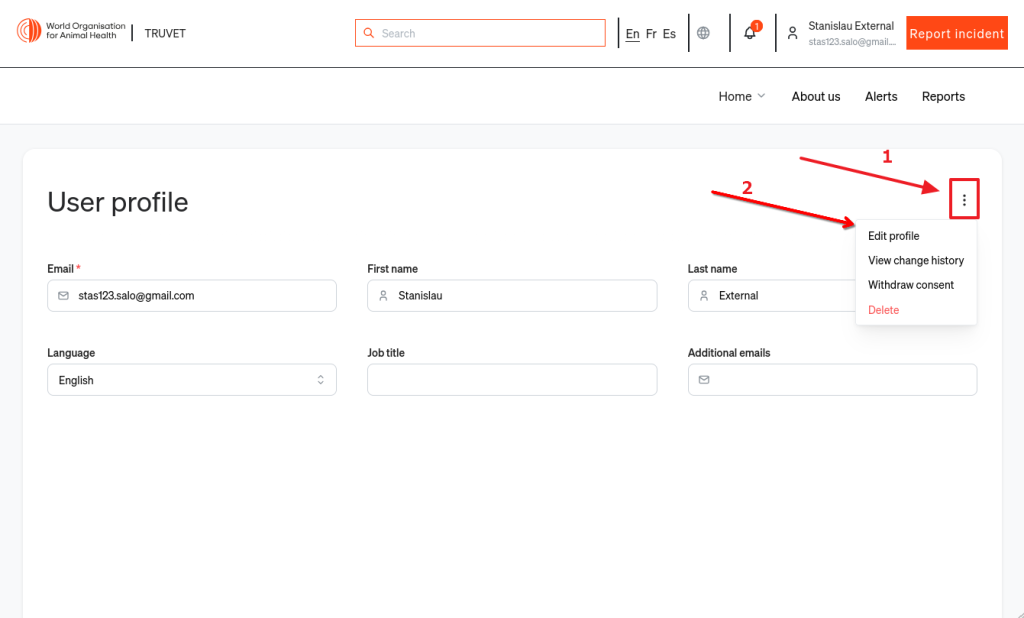
1. If your profile is missing your First Name or Last Name, the system will automatically redirect you to the “Profile” page.
2. A message will appear on your screen asking you to provide this missing information.
3. Click the context menu (1) and open “Edit Profile” (2) mode and type your First Name and Last Name into the required text boxes and save your changes.
Step 5: Welcome to the Home Page
Once your name is securely saved and your profile is complete, the system will redirect you directly to the Home Page. You are now fully logged in and ready to use the platform!